 Documentation v0.11
Data export jobs
An ExportData job writes trac datasets to files in an external storage location. Up to 10 datasets can be
exported in a single job, each as a .csv, .parquet or .arrow file.
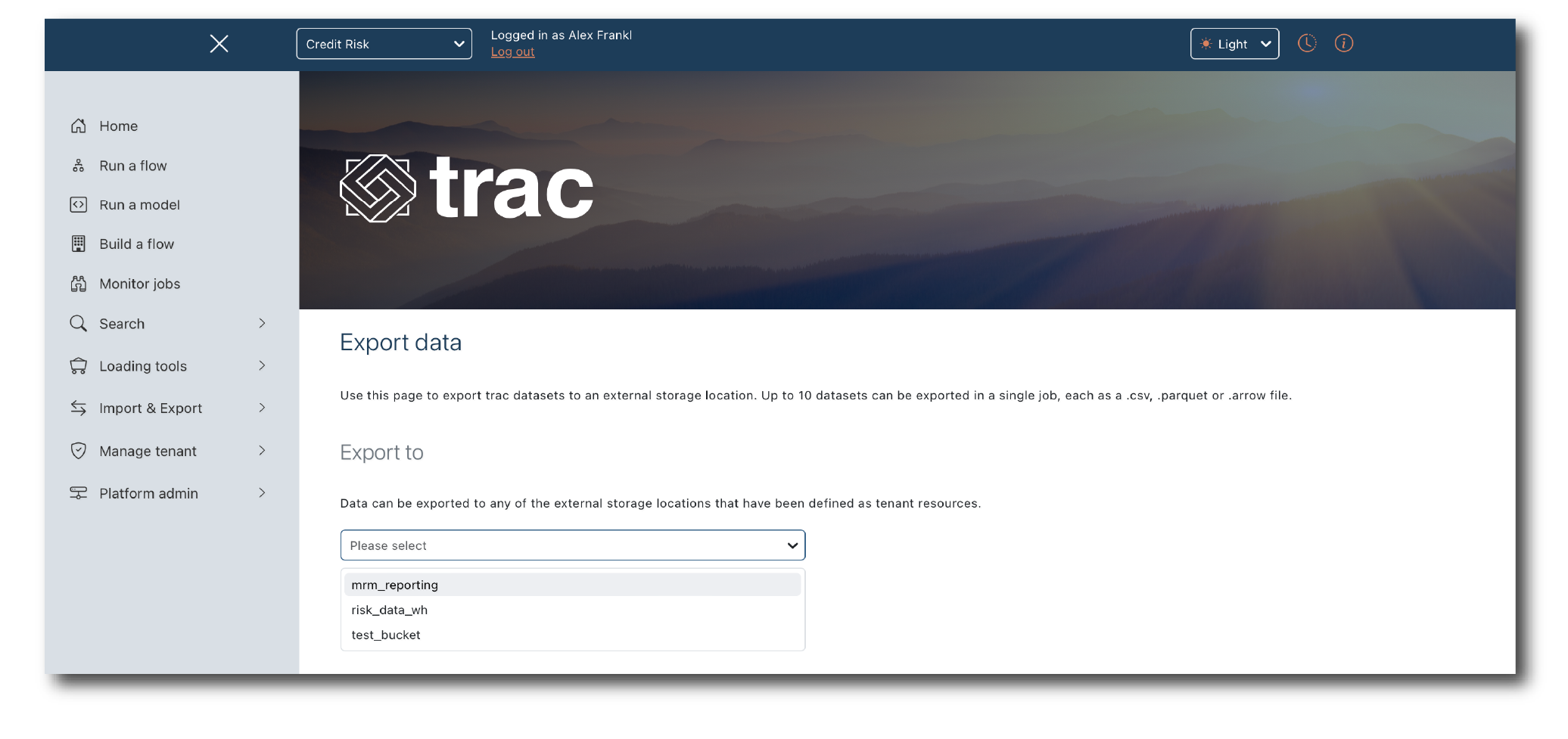
Select ‘Export data’ from the ‘Import & Export’ menu.
Choosing where to export to
Under ‘Export to’, select the storage location to write to. Its details are shown once it’s selected, so you can check you have the right one.
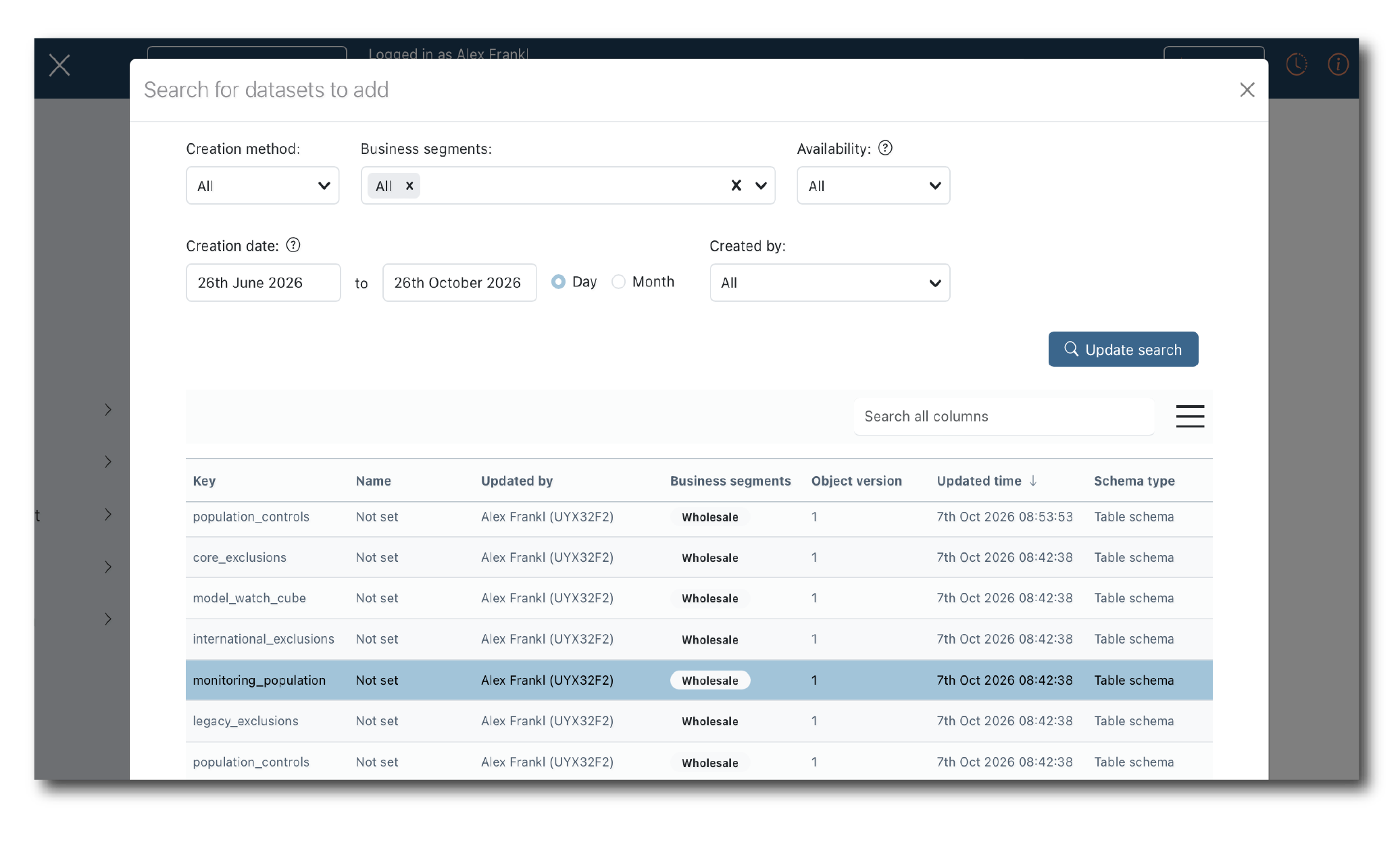
Choosing the datasets
Click ‘Pick datasets’ and use the search to find and select the datasets to export. Use ‘Add datasets’ to add more.
Setting the export details
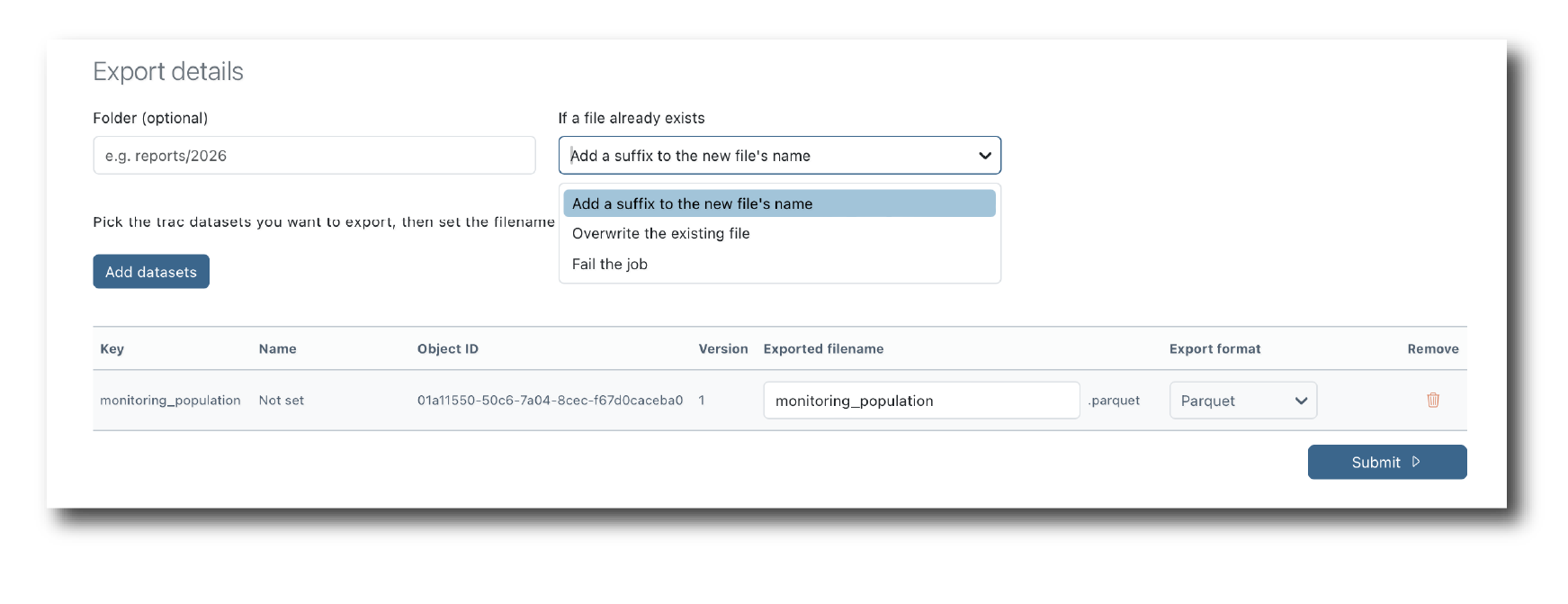
Under ‘Export details’:
Folder (optional) — a folder within the storage location for every file in the job, for example
reports/2026If a file already exists — what to do when a file of the same name is already there: add a suffix to the new file’s name, overwrite the existing file, or fail the job
For each selected dataset, set the exported file name and choose its export format. The format sets the file’s extension. Each dataset needs a different file name or format, so no two files in the job overwrite each other.
Click ‘Submit’ to start the job, then follow its progress from ‘Monitor jobs’.
What the export records
The files written, and where they were written to, are recorded in the job’s result, so every file sent off the platform can be traced back to the exact dataset versions it came from.