 Documentation v0.10
Run a flow
Selecting a flow
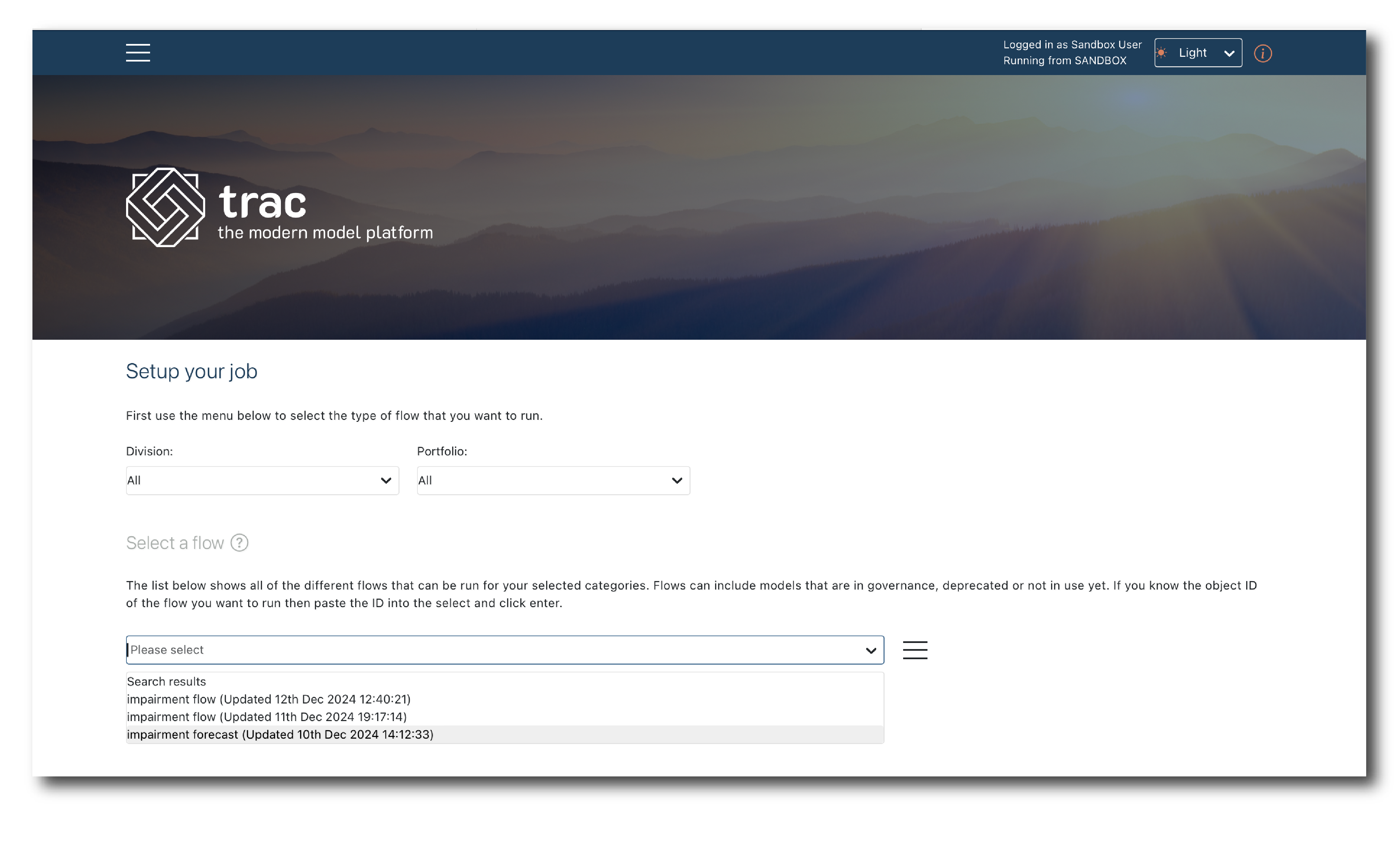
Click ‘Run a Flow’ on the main menu or homepage to configure a RunFlow job.
First, select the flow you want to use…
Note
If the flow you selected has multiple versions available the latest version will be selected by default. Moving the toggle to off allows you to manually pick a prior version of the model object.
Configuring the job
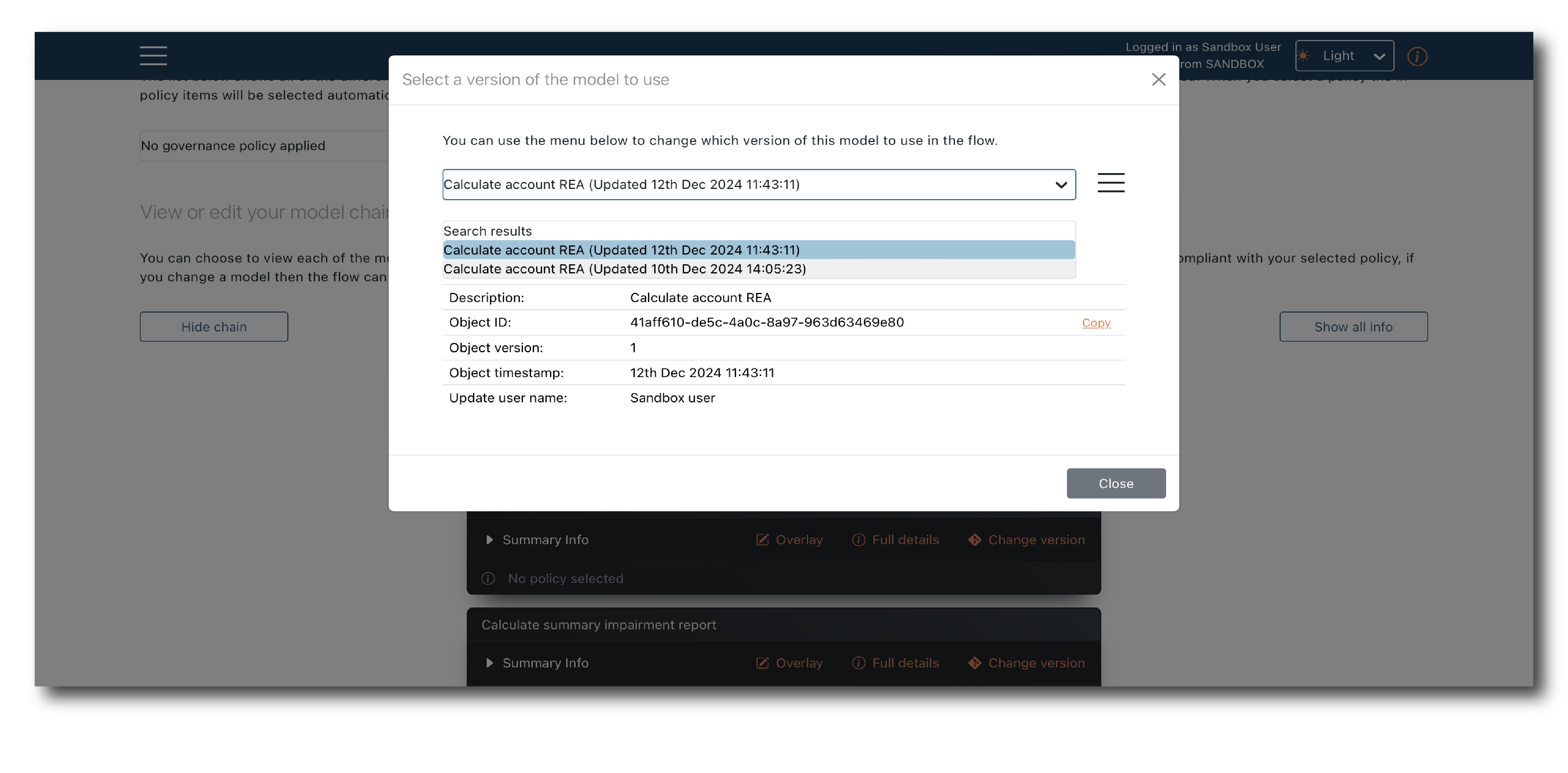
Clicking ‘Show chain’ expands a list of the models which make up the flow.
If more than one model object or version matches the criteria for use in the flow, you will have the option to ‘Change version’.
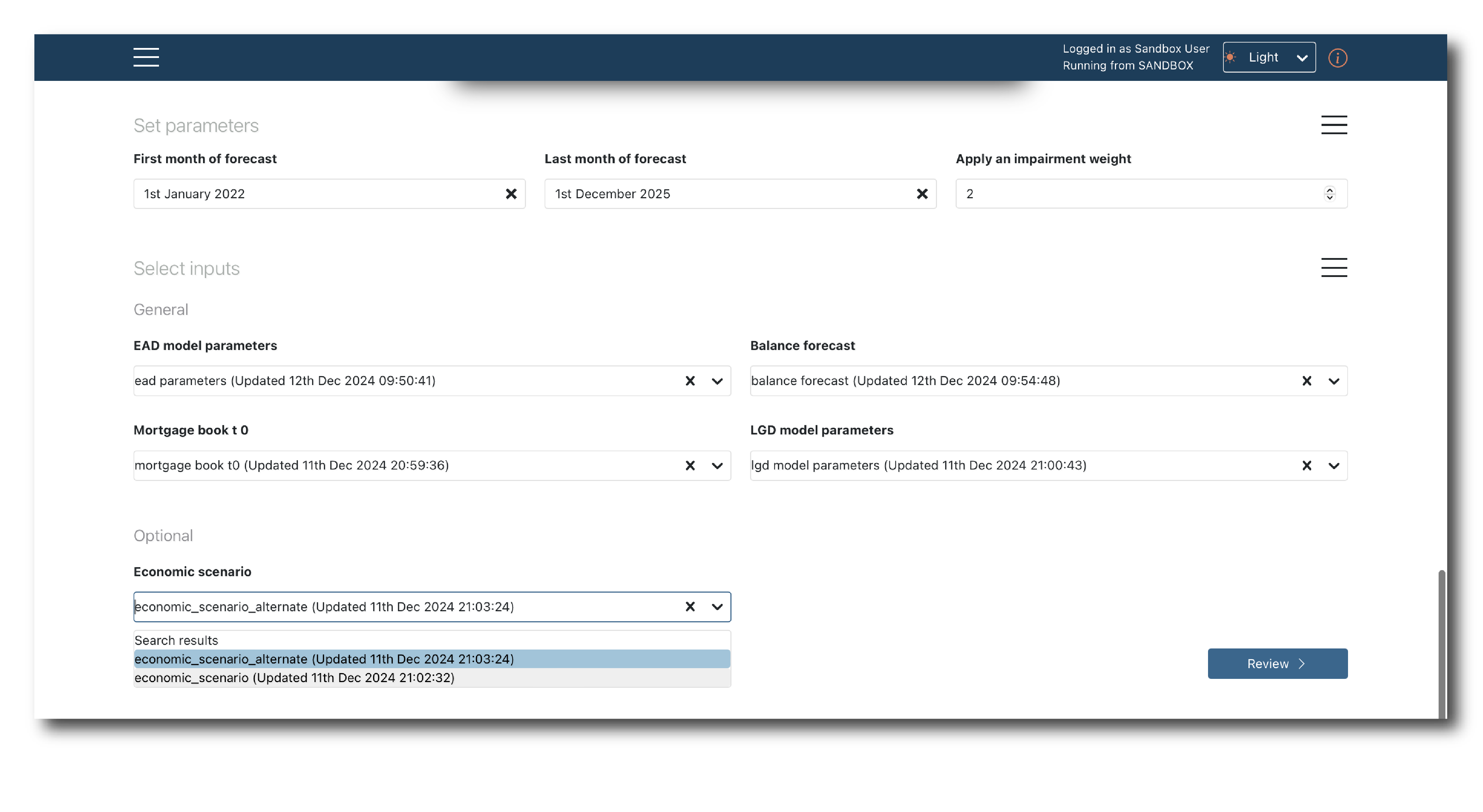
Below this the default values of any parameters are pre-populated, as are the data inputs.
If no suitable data is found you see an error message. If multiple options are found you can select which object to use via the drop-downs.
Note
By default, the most recent versions of each data set will be used. If any data object you select has multiple versions available then moving the toggle to off allows you to manually select which versions to use.
Once finished, click ‘Review’ to see a final breakdown of what will be in the job.
Review & launch
Clicking ‘View full info’ brings up the full details of the flow including visualisation
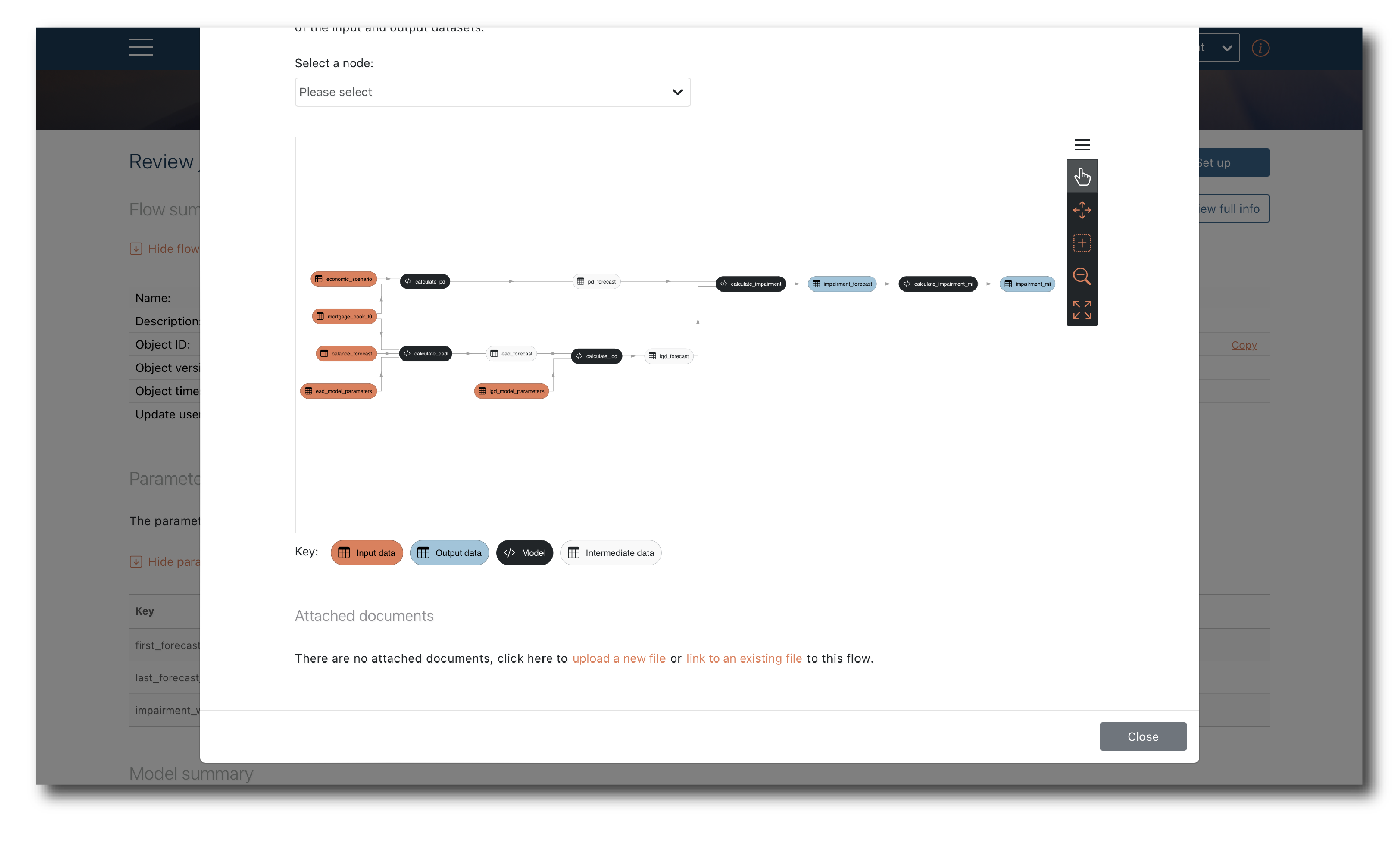
You can also see full lineage information for each model and data input via the ‘More info’ buttons.
If it all looks correct, populate the general attributes and click ‘Run’. A tag is not required but if populated, all the data outputs will have this tag assigned, making them easier to find.
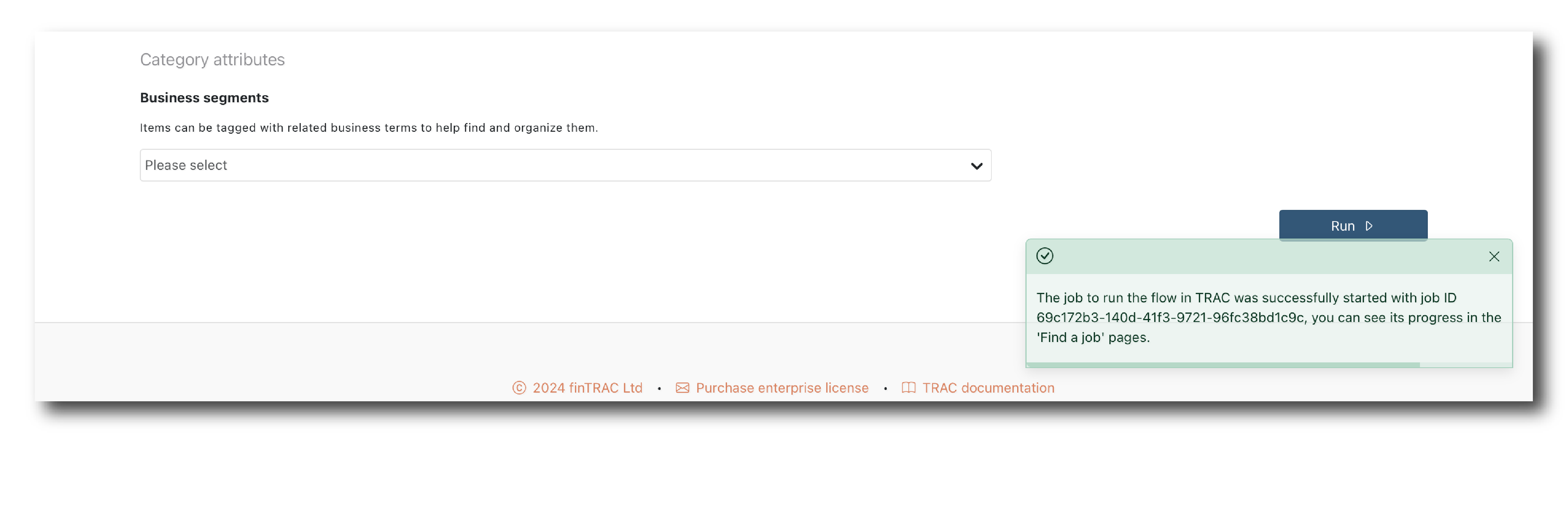
You will get a message telling you the job has started. It won’t tell you the outcome, so (find the job) to check its status.
If there’s an issue with the job set-up you will see a red message instead. The most common issues are missing attribute information or mis-aligned data schemas.
Schema validation
trac applies strict schema validation when compiling a job. Key things to remember are:
It occurs between schemas, not between data content
It considers Field name, Field Type, Business key, Categorical and Not nullable
The order in which field names appear is not important
A source schema must contain all the fields needed by the target schema
The source schema can contain extra fields