 Documentation v0.10
Run a model
Select
By clicking ‘Run a Model’ on the main menu you can set up a job to execute a single model.
First, select the model you want to run, filtering based on business segments if needed.
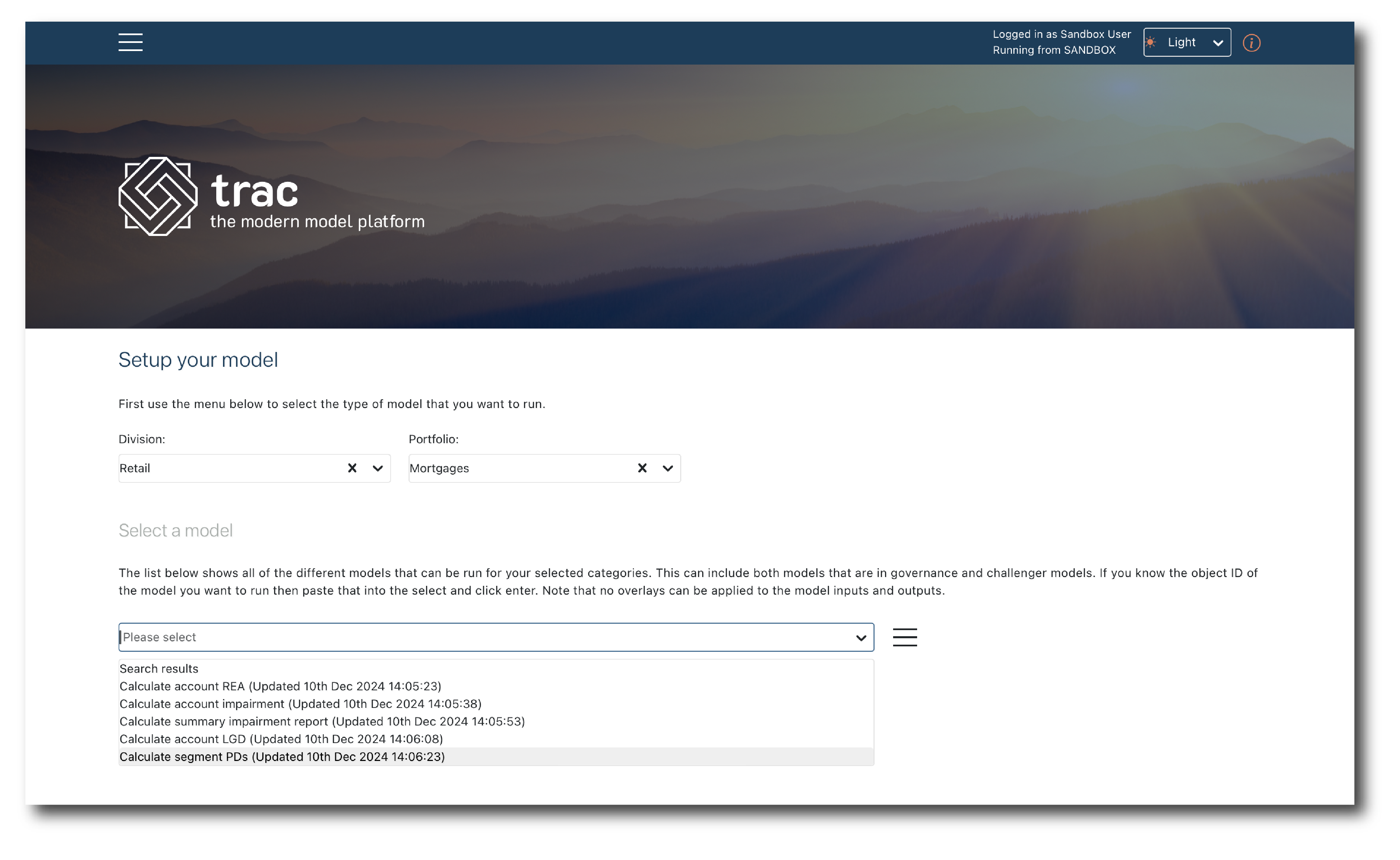
Once selected, trac builds the UI based on the model schema.
Note
If the model you selected has multiple versions available the latest version will be selected by default. Moving the toggle to off allows you to manually pick a prior version of the model object.
Set-up
Default parameter values are pre-populated as are the data inputs.
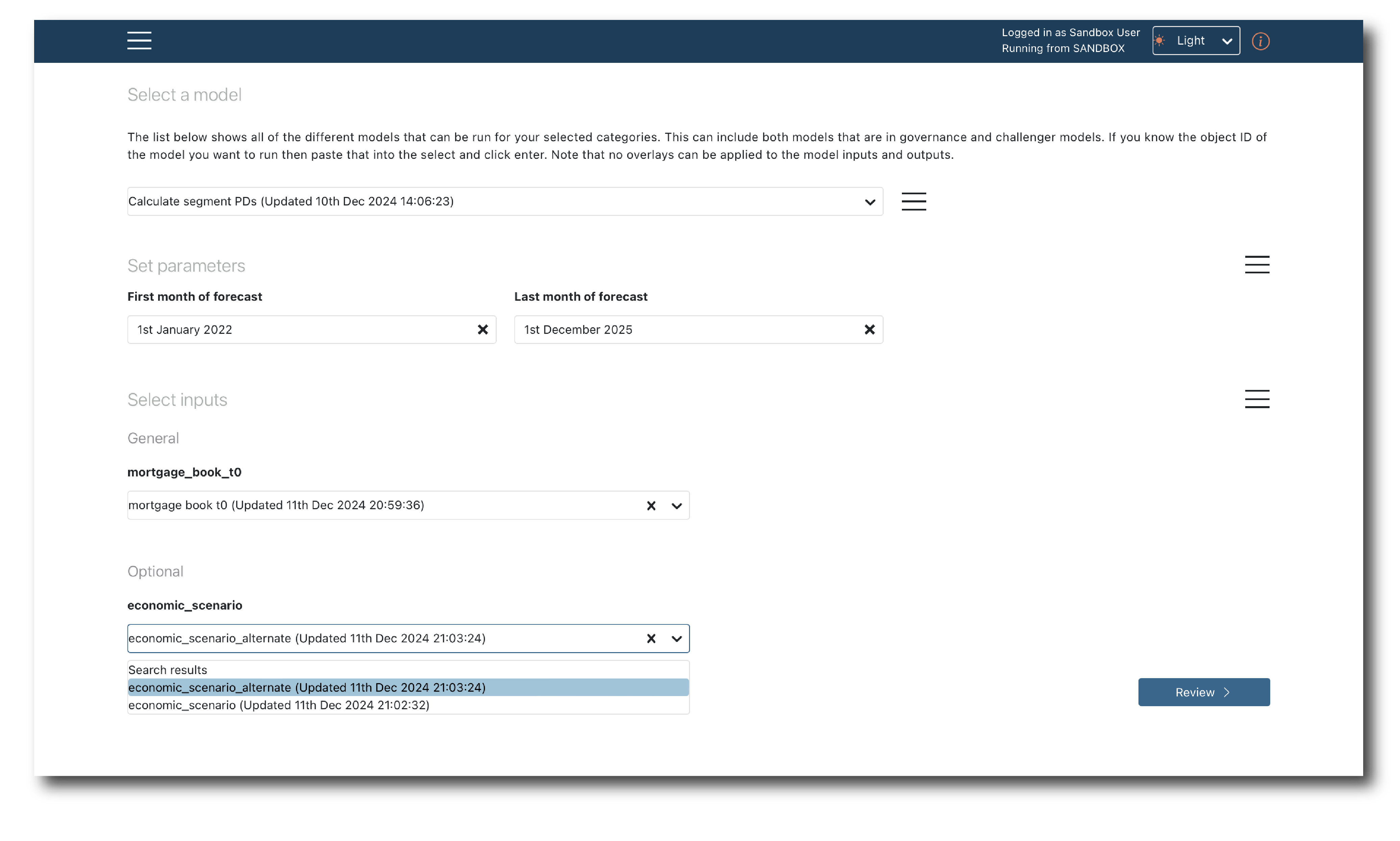
If more than one data object is found the drop-downs allow you to pick the data objects to use for this job. Once the inputs are selected, click ‘Review’ to check everything before the job runs.
Note
By default, the most recent versions of each data set will be used. If any data object you select has multiple versions available then moving the toggle to off allows you to manually select which versions to use.
Review & launch
The review page allows you to see the full details of the job before it launches. If anything doesn’t look right, return to the ‘Set-up’ stage and make a change.
To initiate the job it needs a Name and a Description. A tag is not required but if you do populate it all the job’s outputs will have this tag assigned, so they are easier to find.
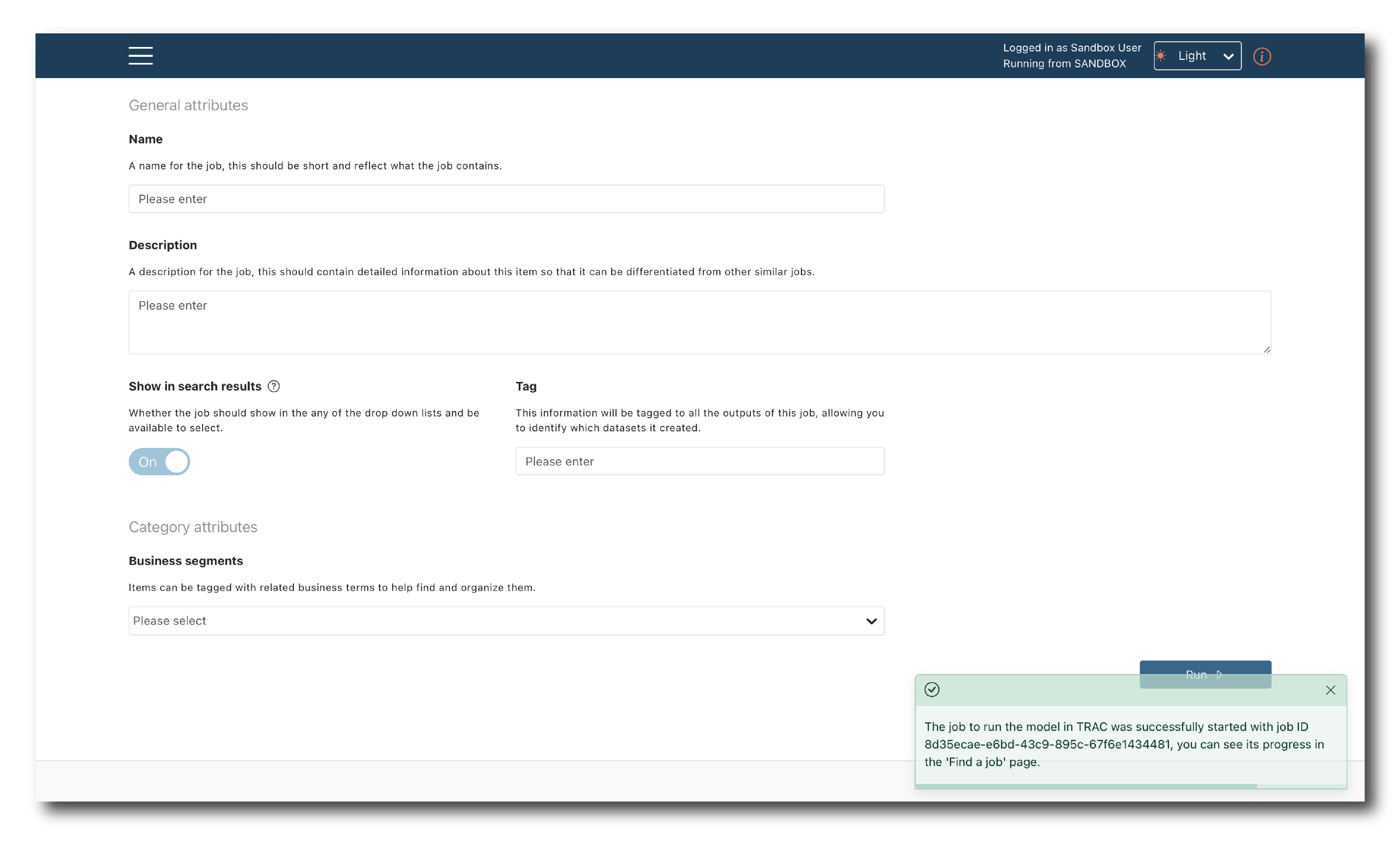
You will get a message telling you the job has started. It won’t tell you the outcome, so (find the job) to check its status.
If there’s an issue with the job set-up you will see a red message instead. The most common issues are missing attribute information or mis-aligned data schemas.